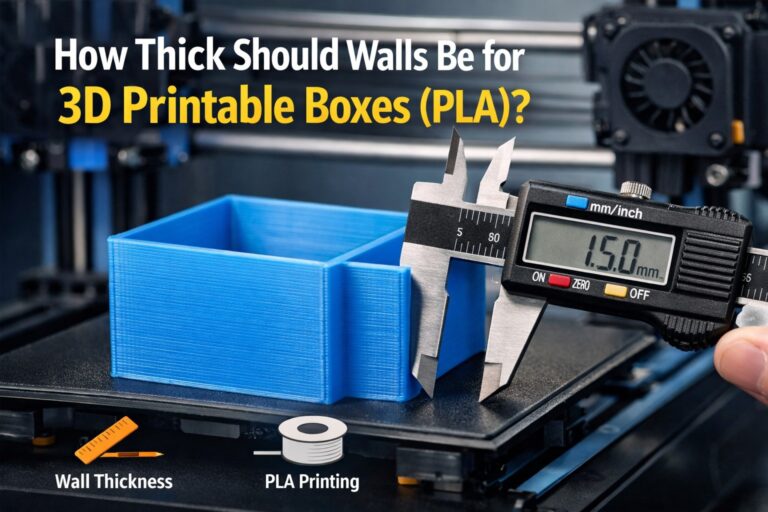
Getting perfectly smooth surfaces is one of the biggest goals in FDM 3D printing. If your prints look rough, show visible layer lines, or feel uneven to the touch, the issue is often related to wall settings in Orca Slicer rather than the printer itself. (orca slicer wall settings pla)
In this guide, you’ll learn the best Orca Slicer wall settings for smooth PLA prints, why they matter, and how to fine-tune them for cleaner outer surfaces.
Why Wall Settings Matter for PLA Print Quality
Walls define the visible exterior of your model. Even if infill and internal layers are correct, poor wall configuration can still produce:
- Rough or wavy surfaces
- Inconsistent extrusion lines
- Weak outer shells
- Visible seams or gaps
Because PLA is commonly used for display models, miniatures, and decorative prints, optimizing wall behavior is essential for achieving a professional finish.
Recommended Wall Count for Smooth PLA
The wall count controls how many perimeter lines surround your model.
For most PLA prints:
- 2 walls → faster but less smooth and weaker
- 3 walls → best balance of strength and surface quality
- 4 walls → smoother finish for decorative prints and miniatures
For smooth PLA surfaces, 3 walls is the safest default.
Increase to 4 walls when printing miniatures or curved objects where surface quality is critical.
Optimal Wall Line Width in Orca Slicer
Wall line width affects both extrusion consistency and surface appearance.
Best practice for PLA:
- Set wall line width to 100–110% of nozzle diameter
- Example:
- 0.4 mm nozzle → 0.42–0.44 mm wall width
Slightly wider extrusion improves layer bonding and smoothness, reducing tiny gaps between lines.
Avoid extremely wide walls, as they can cause over-extrusion artifacts and surface bulging.
Wall Printing Order and Surface Smoothness
Orca Slicer allows control over inner vs. outer wall printing order.
For the smoothest PLA finish:
- Enable outer wall last
- Reduce outer wall speed compared to inner walls
Printing the outer wall last ensures the final visible layer is laid down cleanly and without vibration artifacts.
This single adjustment can dramatically improve surface polish.
Ideal Wall Speed for Clean PLA Surfaces

Speed directly affects print smoothness.
Recommended starting values:
- Outer wall speed: 20–30 mm/s
- Inner wall speed: 40–60 mm/s
Slower outer walls allow more controlled extrusion, which reduces ringing, blobs, and uneven texture.
If you are using a high-speed printer, lowering only the outer wall speed preserves quality without sacrificing total print time.
Seam Position and Visual Quality
The Z-seam is where each layer begins and ends.
Poor seam placement creates visible dots or scars on smooth PLA prints.
For better results:
- Use aligned or rear seam position for functional parts
- Use random seam for decorative objects to hide marks
Correct seam control makes walls appear significantly cleaner.
Extra Tips for Ultra-Smooth PLA Walls
To push surface quality even further:
- Enable ironing on top surfaces
- Use 0.16–0.2 mm layer height for balance of speed and smoothness
- Ensure filament is dry and high quality
- Calibrate flow rate and temperature before tuning walls
Smooth walls come from combined tuning, not a single setting.
Final Thoughts
Perfect surfaces in PLA printing depend heavily on Orca Slicer wall settings.
By optimizing wall count, line width, printing order, speed, and seam placement, you can dramatically improve the visual quality and strength of your prints.
Start with 3 walls, slightly increased line width, slow outer wall speed, and outer-wall-last printing, then fine-tune based on your printer and filament.
With the right configuration, smooth PLA prints are not difficult—they just require precise wall control.