The Creality K1 has redefined desktop 3D printing with its incredible speeds. However, when it comes to flexible materials like TPU (Thermoplastic Polyurethane), speed can be a double-edged sword. To get the best results, you need a perfect balance between the K1’s CoreXY power and the unique flow characteristics of flexible filaments. (Best high-speed TPU printing settings for K1)
In this guide, we will dive into the best high-speed TPU printing settings for K1 to help you achieve flawless, string-free results without sacrificing too much time.
Understanding TPU on High-Speed Printers
TPU is a “soft” filament, meaning it behaves like a wet noodle in your extruder. If you try to push it too fast without the right tension, it will buckle or wrap around the gears. The Creality K1’s direct drive extruder is excellent for this, but the settings must be precise.
1. Temperature and Cooling
For high-speed TPU printing, you generally need higher temperatures to ensure the material melts fast enough to keep up with the flow.
- Nozzle Temperature: 230°C – 240°C (depending on the brand).
- Bed Temperature: 40°C – 55°C (PEI sheets work best with a thin layer of glue stick to prevent too much adhesion).
- Cooling Fan: 100% after the first 3 layers. TPU needs to solidify quickly to prevent sagging on overhangs.
2. Optimized Speed Settings
While the K1 can hit 600mm/s, you should never print TPU that fast. For the best high-speed TPU printing settings for K1, aim for stability:
- Print Speed: 60mm/s to 100mm/s (This is “high speed” for TPU!).
- Initial Layer Speed: 20mm/s – 30mm/s.
- Infill Speed: 80mm/s.
- Travel Speed: 150mm/s.
3. Retraction: The Secret Sauce
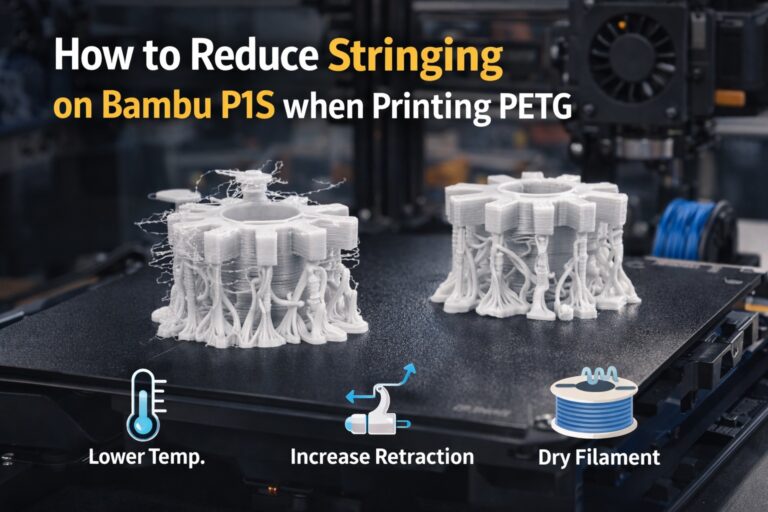
Stringing is the biggest enemy of flexible prints. Because the K1 has a very short filament path, you can use these settings:
- Retraction Distance: 0.8mm – 1.2mm.
- Retraction Speed: 30mm/s.
- Avoid Crossing Perimeters: Enable this in your slicer (Creality Print or OrcaSlicer) to minimize travel moves over open air.
Flow Rate and Pressure Advance
To truly master the best high-speed TPU printing settings for K1, you must calibrate your Flow Rate. TPU often requires a slightly higher flow (around 1.02 to 1.05) because it compresses under pressure. Additionally, setting your Pressure Advance (around 0.04 – 0.06) will significantly reduce “blobs” at the corners of your prints.
Pro Tips for K1 TPU Success
- Dry Your Filament: TPU is extremely hygroscopic. Even 4 hours in a humid room can ruin a print. Use a filament dryer before starting.
- Loosen the Extruder Tension: If your K1 extruder is grinding the filament, loosen the tension screw slightly.
- Direct-to-Extruder: Avoid using long PTFE tubes if possible; a direct path from the dryer to the toolhead is ideal.
Conclusion
Finding the best high-speed TPU printing settings for K1 requires some experimentation, but starting with these parameters will save you hours of failed prints. By keeping your speed around 80mm/s and ensuring your filament is bone-dry, your Creality K1 will produce professional-grade flexible parts with ease.