The Bambu Lab AMS not detected error can stop your print setup from working correctly. In many cases, the problem is not serious. It is usually caused by a loose cable, poor pin contact, firmware mismatch, or a communication issue between the printer and the AMS.
Before you start, turn off the printer and disconnect the power. Bambu Lab also recommends powering off the printer before AMS troubleshooting steps.
What Does “AMS Not Detected” Mean?
This message means your printer cannot communicate with the Automatic Material System. The AMS may not appear on the printer screen, in Bambu Studio, or in the device settings.
This issue can happen on models such as the Bambu Lab X1 Carbon, P1S, and P1P when using the standard AMS. It may also happen after moving the printer, updating firmware, changing cables, or disconnecting the AMS.
Common Causes
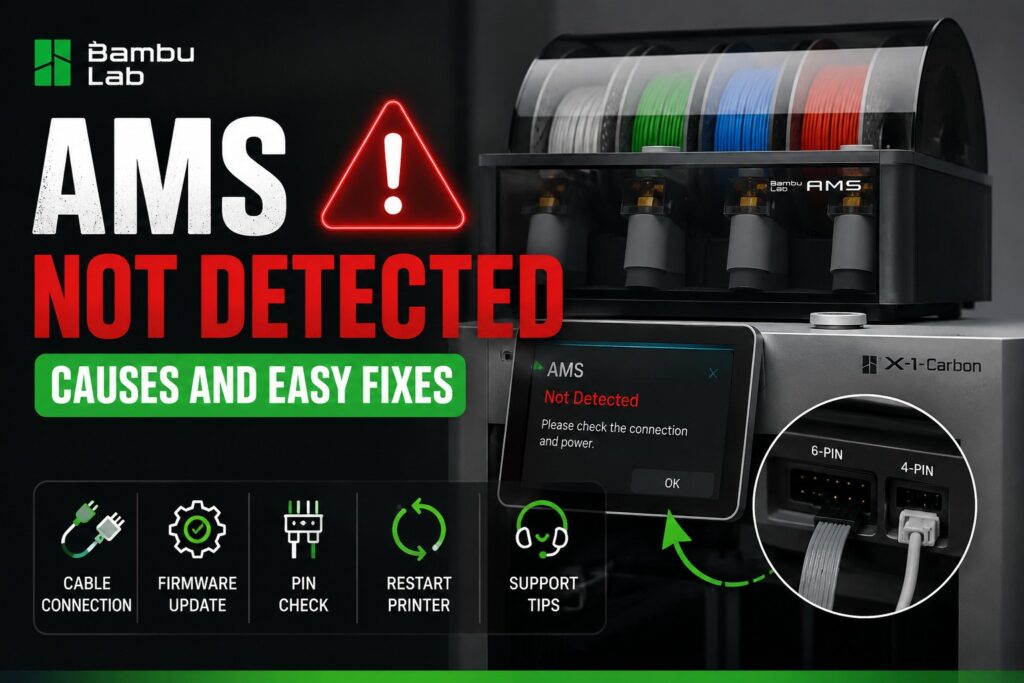
The most common cause is a loose or poorly seated cable. The AMS uses bus cables to communicate with the printer. If the 4-pin or 6-pin connector is not fully inserted, the printer may fail to detect the AMS. Bambu Lab’s official guide also lists 4-pin and 6-pin cable checks as an early troubleshooting step.
Another common reason is damaged or dirty connector pins. Bent pins, dust, or oxidation can interrupt the signal. In some cases, the AMS buffer, AMS hub, or internal interface board may also be involved.
Firmware can also cause detection problems. If the printer firmware, AMS firmware, or Bambu Studio version is outdated, the devices may not communicate properly.
Easy Fixes to Try First
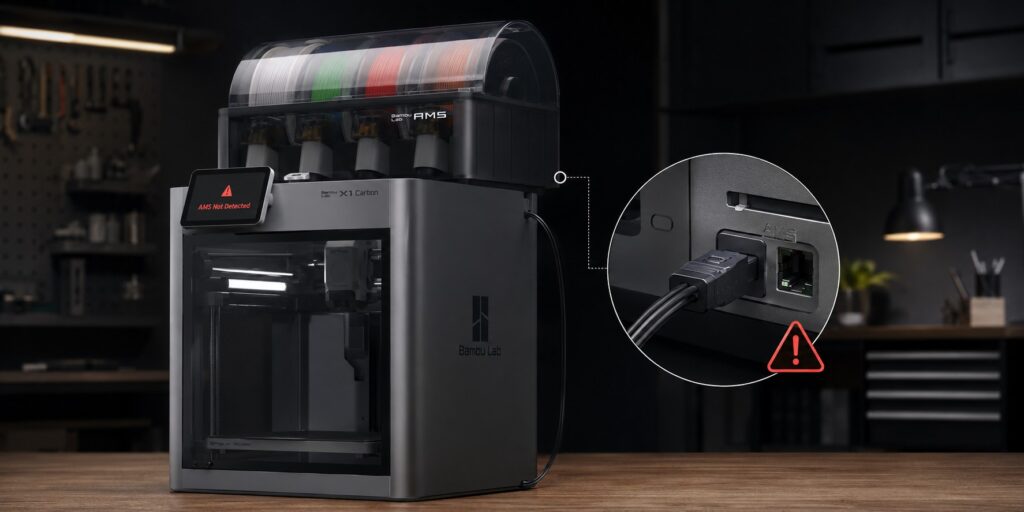
Turn off the printer completely. Then unplug and reconnect the AMS cable on both ends. Make sure each connector clicks firmly into place.
Check the connector pins carefully. They should be straight, clean, and not pushed back inside the plug. Do not force the cable if it does not align correctly.
Restart the printer after reconnecting the AMS. Then open the printer menu or Bambu Studio and check whether the AMS appears again.
Next, update your printer, AMS, and Bambu Studio to the latest available versions. Firmware updates can fix communication and device recognition issues.
Technical Checklist
Use this quick checklist:
- Power off printer before checking cables
- Reseat 4-pin and 6-pin AMS cables
- Check for bent or dirty connector pins
- Inspect AMS hub or buffer connection
- Restart printer after reconnecting AMS
- Update printer and AMS firmware
- Test with another AMS cable if available
- Contact Bambu Lab support if the AMS still has no power or no LED activity
When Should You Contact Support?
If the AMS still does not appear after cable checks, firmware updates, and restart tests, the issue may be hardware-related. The AMS cable, AMS interface board, hub, or mainboard connection may need inspection.
In that case, collect photos, error messages, firmware versions, and a short description of what you already tested. This will help support diagnose the problem faster.
Kaynaklar
https://wiki.bambulab.com/en/x1/troubleshooting/AMS_is_not_detected_by_the_printer
https://forum.bambulab.com/t/ams-not-detected-after-latest-update/89423