If you are still experiencing 3D printer stringing after retraction settings, you are not alone. Many users assume that increasing retraction distance or speed will completely solve stringing, but in reality, this issue often has multiple hidden causes. In this guide, we will explain why stringing still happens and how to fix it properly.
What Is Stringing in 3D Printing?
Stringing occurs when thin strands of filament are left between different parts of a print. It usually happens when the nozzle moves between points and leaks melted filament. While retraction is designed to prevent this, it is not always enough on its own.
Why Stringing Happens Even After Retraction
Even if your retraction settings are correct, stringing can still occur due to other factors. The most common mistake is focusing only on retraction while ignoring temperature, filament condition, and movement settings.
Hidden Causes of Stringing
Here are the most overlooked reasons why stringing continues:
- Nozzle Temperature Too High
If your printing temperature is too high, filament becomes overly fluid and leaks easily. Try reducing temperature by 5–10°C. - Moist Filament (Very Common)
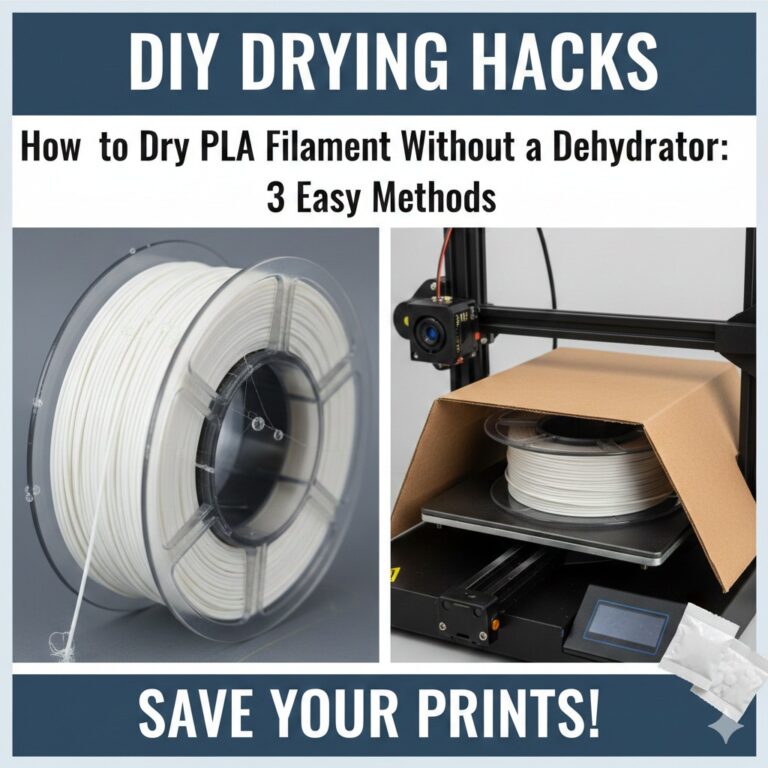
Filament absorbs moisture from the air. Wet filament causes bubbling and stringing. Dry your filament or use a filament dryer. - Slow Travel Speed
If the nozzle moves slowly between points, it has more time to ooze filament. Increasing travel speed can significantly reduce stringing. - Incorrect Combing Mode
In slicers like Cura, combing keeps movements inside the model. Wrong settings can increase stringing. - Z-Hop Enabled
Z-hop can sometimes make stringing worse by increasing travel distance. - Coasting Disabled
Coasting stops extrusion slightly before movement. Enabling it can help reduce excess filament.
Best Settings to Reduce Stringing
To fix stringing after retraction settings, combine these adjustments:
- Lower nozzle temperature gradually
- Increase travel speed (150–200 mm/s if possible)
- Enable coasting in slicer
- Check retraction distance and speed again
- Use dry, high-quality filament
Final Thoughts
If your 3D printer still shows stringing after retraction settings, the problem is rarely just retraction. Temperature, filament moisture, and slicer settings all play a crucial role. By adjusting these factors together, you can achieve clean, professional-looking prints without unwanted strings.
Looking for free models to test your settings? Check out our free STL files collection here: